
ICTechMail IMAP, SMTP, and POP3 Server Settings
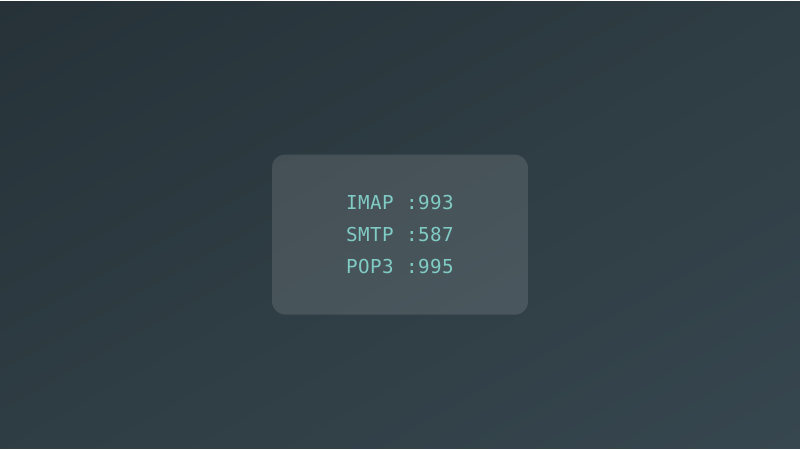
ICTechMail Email Server Settings
Use these settings to connect any email client to your ICTechMail account. The server hostname for all protocols is smtp.swiftthinkr.ai.
IMAP Settings (Recommended)
IMAP keeps your emails synced across all devices. Changes made on one device (read, delete, move) reflect everywhere.
| Setting | Value |
|---|---|
| Server / Hostname | smtp.swiftthinkr.ai |
| Port | 993 |
| Security | SSL/TLS |
| Username | Your full email address (e.g. john@yourdomain.com) |
| Password | Your ICTechMail account password |
SMTP Settings (Outgoing Mail)
Use these settings to send email from any client.
| Setting | Value |
|---|---|
| Server / Hostname | smtp.swiftthinkr.ai |
| Port | 587 |
| Security | STARTTLS |
| Username | Your full email address (e.g. john@yourdomain.com) |
| Password | Your ICTechMail account password |
| Authentication | Required |
POP3 Settings
POP3 downloads emails to your device and removes them from the server. Use IMAP instead if you access email from multiple devices.
| Setting | Value |
|---|---|
| Server / Hostname | smtp.swiftthinkr.ai |
| Port | 995 |
| Security | SSL/TLS |
| Username | Your full email address (e.g. john@yourdomain.com) |
| Password | Your ICTechMail account password |
Quick Reference
| Protocol | Server | Port | Security |
|---|---|---|---|
| IMAP (incoming) | smtp.swiftthinkr.ai | 993 | SSL/TLS |
| SMTP (outgoing) | smtp.swiftthinkr.ai | 587 | STARTTLS |
| POP3 (incoming) | smtp.swiftthinkr.ai | 995 | SSL/TLS |
Username and Password
- Username: Always your full email address. For example,
john@yourdomain.com, not justjohn. - Password: The password you set when creating the email account in ICTechMail.
Verify Your Connection
If you have trouble connecting, use these tools to check your setup:
- SMTP Test — verify your outgoing mail server is reachable
- MX Lookup — confirm your domain MX records point to
smtp.swiftthinkr.ai - Blacklist Check — make sure your sending IP is not blacklisted